
使用 FFmpeg + Spring Boot 搭建大华摄像头 HLS 实时流服务(含自动重启与静态映射)
在本地网络中接入多路大华摄像头时,如果想在浏览器中低成本播放实时画面,一个简单可行的方案是使用 FFmpeg 将 RTSP 转码为 HLS(m3u8)格式,再通过 Spring Boot 提供静态资源映射。
本文分享我在项目中搭建的完整方案:
- 不依赖 Nginx 或 Wowza;
- 支持 20 路摄像头同时推流;
- 自动守护、掉线重启;
- 浏览器原生可播放(HTML
<video>即可)。
一、方案原理
大华、海康等摄像头通常输出 RTSP 流,浏览器无法直接播放。
HLS(HTTP Live Streaming)是苹果提出的基于 HTTP 的流式传输协议,核心思想是:
- FFmpeg 从摄像头拉取 RTSP 码流;
- 切割为一系列小的
.ts文件; - 生成索引文件
.m3u8; - 浏览器通过 HTTP 轮询下载播放。
工作流程示意:
摄像头 → RTSP → FFmpeg → HLS片段(.ts) → index.m3u8 → 浏览器优点:
- 实现简单,浏览器原生支持;
- 通过 HTTP 传输,容易跨域、兼容 CDN;
- 可回放或做录像功能。
缺点:
- 延迟较高(通常 2~5 秒);
- 对实时性要求高的场景(如监控控制)不太合适;
- 需要持续磁盘写入(碎片化 I/O 较多)。
安装ffmpeg的build版本
https://ffmpeg.org/download.html
进入bin目录下,记住运行目录,设置环境变量:

命令行输入
ffmpeg -version
运行成功后,会看到如下信息:
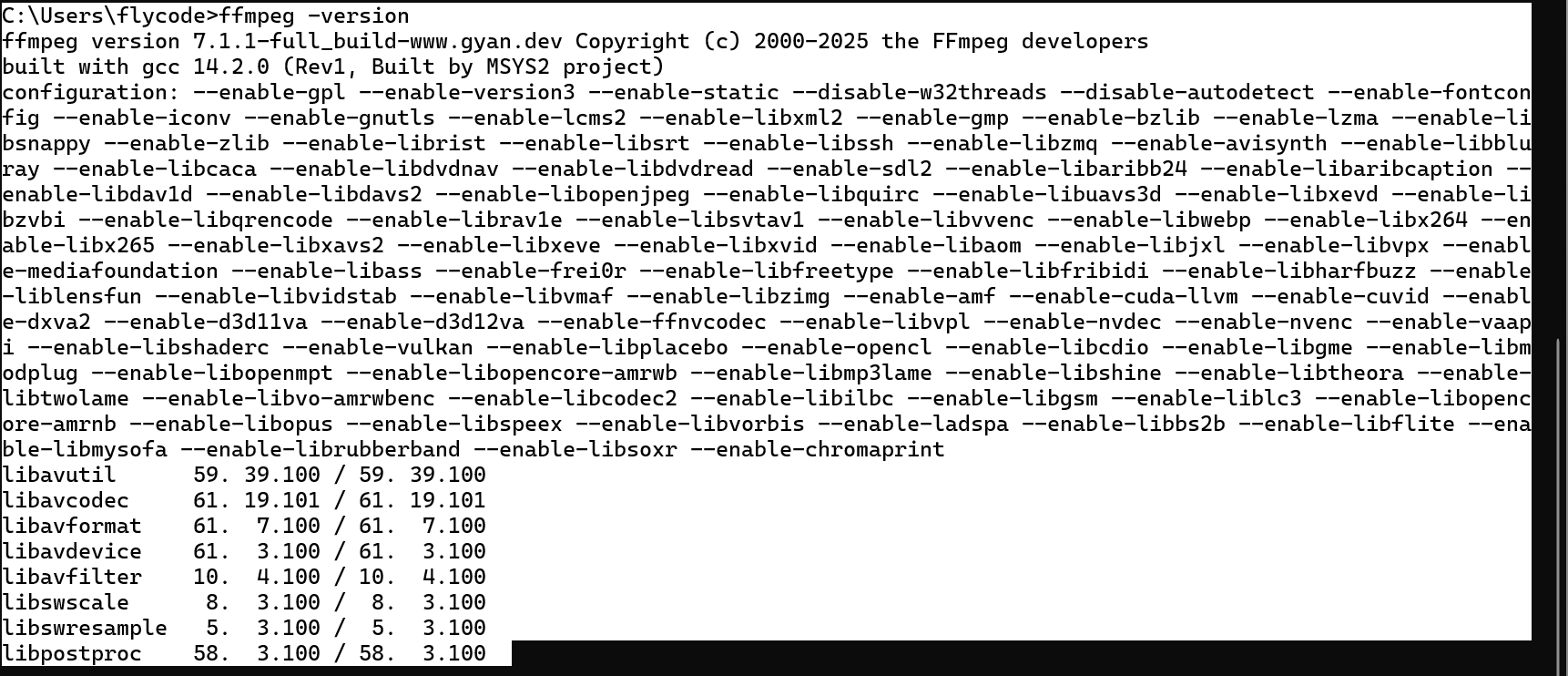
后续即可直接使用ffmpeg
二、Spring Boot 静态映射配置
我们将 FFmpeg 输出的 HLS 文件存放在 ./hls-stream 目录下,然后通过 Spring Boot 的 WebMvcConfigurer 将其映射为 /hls/** 访问路径。
@Configuration(proxyBeanMethods = false)public class DahuaStaticMappingConfig implements WebMvcConfigurer {    @Override    public void addResourceHandlers(ResourceHandlerRegistry registry) {        String userDir = System.getProperty("user.dir");        Path hlsDir = Paths.get(userDir, "hls-stream").toAbsolutePath();        String fileLocation = "file:" + hlsDir + "/";
registry.addResourceHandler("/hls/**") .addResourceLocations(fileLocation) .setCachePeriod(0); // 禁止缓存,确保实时性 }}这样,hls-stream/ip/channel1/index.m3u8
就能通过 http://localhost:8080/hls/ip/channel1/index.m3u8 访问。
三、批量 FFmpeg 管理器(DahuaStreamManager)
这部分核心是自动启动、监控、重启所有 FFmpeg 拉流任务。
每个摄像头的两路码流(主码流 + 子码流)分别运行一个独立的 FFmpeg 进程:
@Componentpublic class DahuaStreamManager {    private static final String USER = "xxx";    private static final String PASS = "xxxxx";    private static final int SUBTYPE = 0; // 0主码流 1子码流    private static final List<String> IPS = Arrays.asList(        "IP"    );
    private final Map<String, DahuaStreamProcess> processes = new ConcurrentHashMap<>();    private ScheduledExecutorService watchdog;
    @PostConstruct    public void startAll() {        String userDir = System.getProperty("user.dir");        File hlsRoot = new File(userDir, "hls-stream");
        for (String ip : IPS) {            for (int ch = 1; ch <= 2; ch++) {                String name = ip + "-ch" + ch;                String rtsp = String.format("rtsp://%s:%s@%s:554/cam/realmonitor?channel=%d&subtype=%d", USER, PASS, ip, ch, SUBTYPE);                File outDir = new File(new File(hlsRoot, ip), "channel" + ch);                processes.put(name, new DahuaStreamProcess(name, rtsp, outDir, 2, 3));            }        }
        // 启动所有进程        processes.values().forEach(proc -> {            try { proc.start(); } catch (Exception e) { e.printStackTrace(); }        });
        // 看门狗:每10秒检查异常进程并重启        watchdog = Executors.newSingleThreadScheduledExecutor();        watchdog.scheduleAtFixedRate(this::checkAndHeal, 10, 10, TimeUnit.SECONDS);    }
    private void checkAndHeal() {        processes.forEach((name, proc) -> {            if (!proc.isAlive()) {                try {                    proc.restart();                } catch (Exception e) {                    System.err.println("Restart failed: " + name);                }            }        });    }
    @PreDestroy    public void stopAll() {        if (watchdog != null) watchdog.shutdownNow();        processes.values().forEach(DahuaStreamProcess::stop);    }}
四、FFmpeg 调用封装(DahuaStreamProcess)
每一路摄像头使用一个独立的 FFmpeg 命令:
ffmpeg -rtsp_transport tcp -i rtsp://admin:pass@ip:554/cam/realmonitor?channel=1&subtype=0 \ -fflags +genpts -c:v copy -an -f hls -hls_time 2 -hls_list_size 3 \ -hls_flags delete_segments+independent_segments ./hls-stream/ip/channel1/index.m3u8关键参数说明:
| 参数 | 说明 |
|---|---|
-rtsp_transport tcp | 使用 TCP 拉流,更稳定(UDP 容易丢包) |
-c:v copy | 不转码,直接拷贝视频码流(无 CPU 压力) |
-an | 不保留音频 |
-f hls | 输出格式为 HLS |
-hls_time 2 | 每个片段长度 2 秒 |
-hls_list_size 3 | 播放列表中保留 3 个片段 |
-hls_flags delete_segments+independent_segments | 自动删除旧片段,保证独立关键帧切割 |
这些参数组合可以将延迟控制在 3~6 秒之间,且磁盘空间占用较低。
五、浏览器播放
浏览器可直接使用 <video> 标签播放:
<video  src="http://localhost:8080/hls/IP/channel1/index.m3u8"  controls  autoplay  muted  playsinline></video>
<script src="https://cdn.jsdelivr.net/npm/hls.js@latest"></script><script>  const video = document.querySelector('video');  if (Hls.isSupported()) {      const hls = new Hls();      hls.loadSource(video.src);      hls.attachMedia(video);  }</script>
详细代码
<!DOCTYPE html><html lang="zh-CN"><head>  <meta charset="UTF-8">  <title>大华相机 20 路 HLS 预览</title>  <meta name="viewport" content="width=device-width, initial-scale=1.0">  <!-- hls.js CDN -->  <script src="https://cdn.jsdelivr.net/npm/hls.js@latest"></script>  <style>    body { margin: 0; font-family: system-ui, sans-serif; background: #111; color: #eee; }    header { padding: 10px 16px; background: #1b1b1b; position: sticky; top: 0; z-index: 10; }    .grid {      display: grid;      grid-template-columns: repeat(5, 1fr);      grid-auto-rows: 180px;      gap: 8px;      padding: 10px;    }    .card {      position: relative; background: #000; border-radius: 8px; overflow: hidden; border: 1px solid #333;    }    .card video { width: 100%; height: 100%; object-fit: cover; background: #000; }    .label {      position: absolute; left: 8px; bottom: 8px; padding: 4px 6px;      background: rgba(0,0,0,0.5); border-radius: 4px; font-size: 12px;    }    .card:hover { outline: 2px solid #4caf50; cursor: pointer; }    .modal {      position: fixed; inset: 0; background: rgba(0,0,0,.6); display: none; align-items: center; justify-content: center;    }    .modal .inner { width: 80vw; height: 60vh; background: #000; border-radius: 8px; overflow: hidden; border: 1px solid #444; position: relative; }    .modal .inner video { width: 100%; height: 100%; object-fit: contain; background: #000; }    .close { position: absolute; top: 8px; right: 8px; background: #222; color: #eee; border: 1px solid #555; padding: 6px 10px; border-radius: 4px; cursor: pointer; }    .tips { font-size: 12px; opacity: .8; }  </style></head><body><header>  <div>大华相机 HLS 预览(20 路,点击单路放大)</div>  <div class="tips">需要服务端 ffmpeg 在 PATH 中可执行;流地址格式:/hls/<IP>/channel{1|2}/index.m3u8</div></header>
<div class="grid" id="grid"></div>
<div class="modal" id="modal">  <div class="inner">    <button class="close" id="closeBtn">关闭</button>    <video id="modalVideo" controls playsinline></video>  </div></div>
<script>  const ips = [    "xxx"  ];  const channels = [1, 2];
  const BASE_URL = "http://localhost:80"; // 后端地址  const streams = [];  for (const ip of ips) {    for (const ch of channels) {      streams.push({        label: ip + " / ch" + ch,        url: BASE_URL + "/hls/" + ip + "/channel" + ch + "/index.m3u8"      });    }  }
  const grid = document.getElementById('grid');
  function createCard(stream) {    const card = document.createElement('div');    card.className = 'card';    const video = document.createElement('video');    video.muted = true;           // 多路自动播放需要静音    video.autoplay = true;    video.playsInline = true;    video.controls = false;
    const label = document.createElement('div');    label.className = 'label';    label.textContent = stream.label;
    card.appendChild(video);    card.appendChild(label);
    // 初始化 hls 播放    function attachHls(videoEl, url) {      if (videoEl.canPlayType('application/vnd.apple.mpegurl')) {        videoEl.src = url;        videoEl.play().catch(()=>{});        return { destroy(){} };      }      if (Hls.isSupported()) {        const hls = new Hls({ liveDurationInfinity: true, lowLatencyMode: true });        hls.loadSource(url);        hls.attachMedia(videoEl);        hls.on(Hls.Events.ERROR, (ev, data) => {          if (data.fatal) {            switch (data.type) {              case Hls.ErrorTypes.NETWORK_ERROR: hls.startLoad(); break;              case Hls.ErrorTypes.MEDIA_ERROR: hls.recoverMediaError(); break;              default: hls.destroy(); attachHls(videoEl, url);            }          }        });        return hls;      } else {        console.warn('HLS not supported in this browser');        return { destroy(){} };      }    }
    const hls = attachHls(video, stream.url);
    // 点击放大    card.addEventListener('click', () => openModal(stream.url, stream.label));
    // 简单的可见性处理:不可见时暂停(可按需启用)    const io = new IntersectionObserver(entries => {      entries.forEach(e => {        if (e.isIntersecting) {          video.play().catch(()=>{});        } else {          video.pause();        }      });    }, { threshold: 0.2 });    io.observe(card);
    return card;  }
  streams.forEach(s => grid.appendChild(createCard(s)));
  // 放大播放  const modal = document.getElementById('modal');  const modalVideo = document.getElementById('modalVideo');  const closeBtn = document.getElementById('closeBtn');  let modalHls = null;
  function openModal(url, label) {    modal.style.display = 'flex';    if (modalVideo.canPlayType('application/vnd.apple.mpegurl')) {      modalVideo.src = url;      modalVideo.play().catch(()=>{});    } else if (Hls.isSupported()) {      modalHls = new Hls({ liveDurationInfinity: true, lowLatencyMode: true });      modalHls.loadSource(url);      modalHls.attachMedia(modalVideo);      modalHls.on(Hls.Events.MANIFEST_PARSED, () => modalVideo.play().catch(()=>{}));    }  }  function closeModal() {    modal.style.display = 'none';    modalVideo.pause();    modalVideo.removeAttribute('src');    if (modalHls) { modalHls.destroy(); modalHls = null; }  }  closeBtn.addEventListener('click', closeModal);  modal.addEventListener('click', (e) => { if (e.target === modal) closeModal(); });</script></body></html>
六、HLS 与 WebRTC 的对比
| 特性 | HLS | WebRTC |
|---|---|---|
| 延迟 | 3~6 秒 | < 1 秒 |
| 编解码 | 可拷贝或转码 | 通常需实时编解码 |
| 浏览器支持 | 通过 hls.js 实现 | 原生支持 |
| 网络兼容性 | HTTP,穿透简单 | 需 STUN/TURN |
| 适合场景 | 监控回放、直播、预览 | 实时交互、对讲、控制 |
| CPU 占用 | 低(复制模式) | 较高(实时编码) |
结论:
- 若主要用于视频预览、非强实时场景(如施工监控、设备可视化),HLS 简单稳定;
- 若需低延迟或双向互动,推荐 WebRTC。
七、总结
本方案通过:
- FFmpeg 做 RTSP → HLS 转换;
- Spring Boot 提供静态映射;
- Java 管理多进程与自动重启;
实现了一个稳定、高度自动化的多路摄像头流媒体转发系统。
它不依赖外部推流服务器,仅需 FFmpeg 与少量 Java 代码即可运行。
评论